
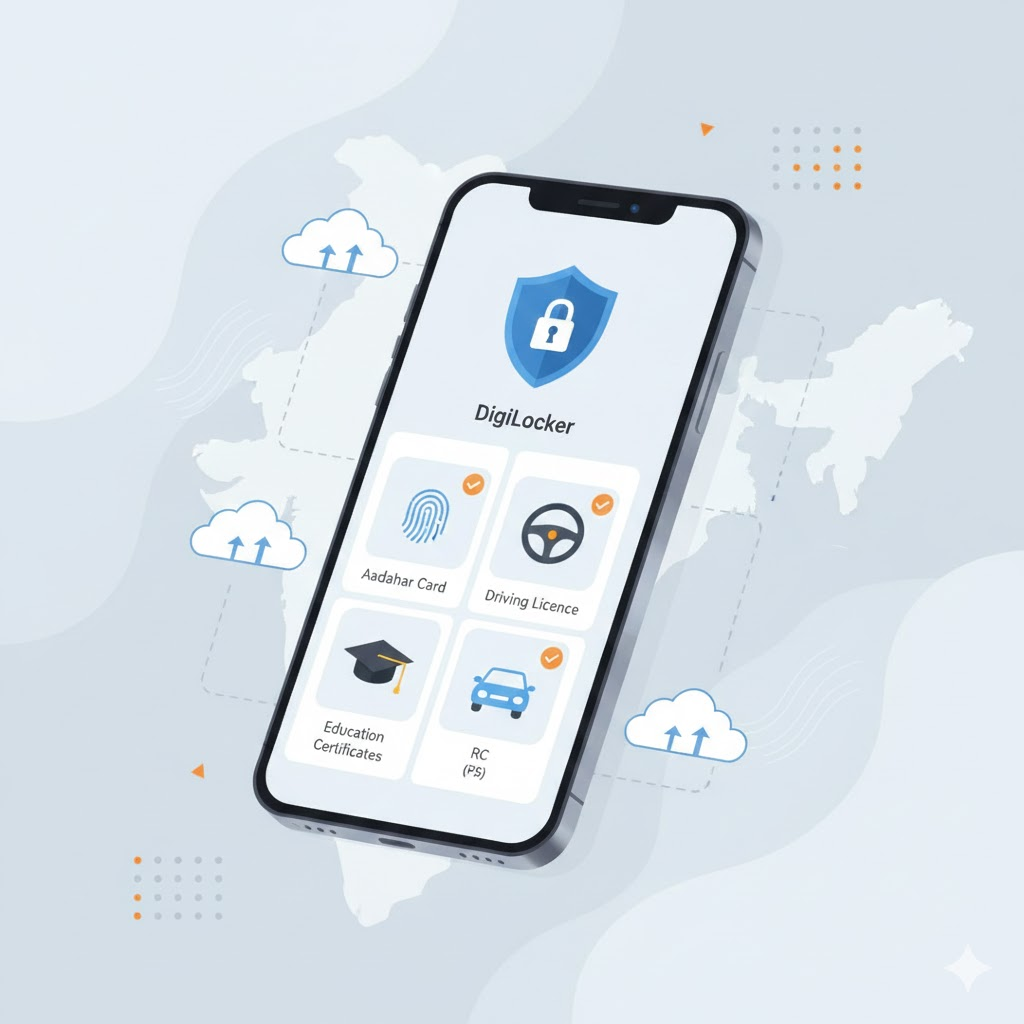
In today’s digital governance system, Indian citizens are increasingly encouraged to maintain official records online for easy access and verification. One of the most important initiatives in this direction is DigiLocker, a Government of India platform that allows us to store, access, and share important certificates securely.
We often possess multiple physical certificates such as Aadhaar, driving licence, vehicle registration, educational certificates, voter ID, and income certificates. Managing these documents physically can lead to loss, damage, or delays when they are required urgently. This is where the need to Link All Certificates to DigiLocker becomes essential.
By choosing to How to Link All Certificates to DigiLocker, we can access government documents anytime, anywhere, without carrying originals. Digital storage ensures safety, authenticity, and ease of verification. In this guide, we explain how Indian citizens can Link All Certificates to DigiLocker step by step in a clear, official, and user-friendly manner.
What Is DigiLocker and How It Works
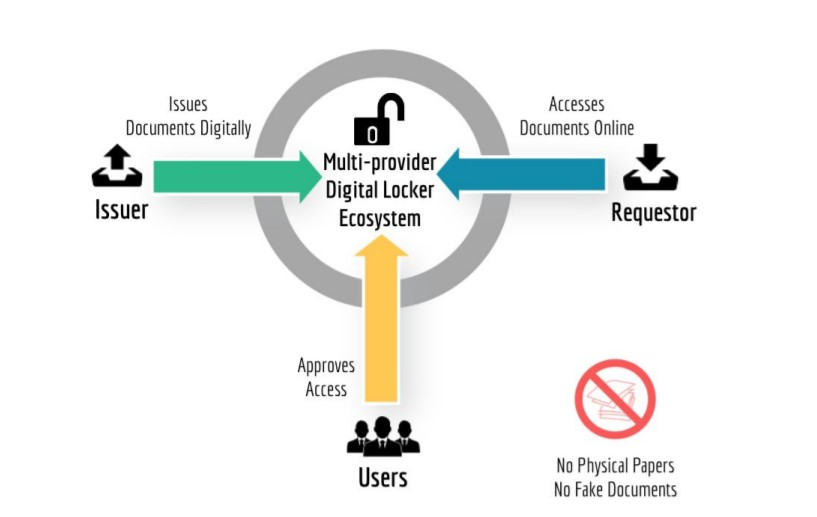
DigiLocker is a cloud-based digital locker system provided under the Digital India programme. It allows issuing authorities such as transport departments, education boards, and government agencies to issue documents directly into our DigiLocker account.
When we Link All Certificates to DigiLocker, the documents are fetched electronically from the issuing authority and stored securely. These documents are digitally signed and legally valid. DigiLocker also allows us to upload scanned copies of documents if direct linking is not available.
Types of Certificates That Can Be Linked to DigiLocker
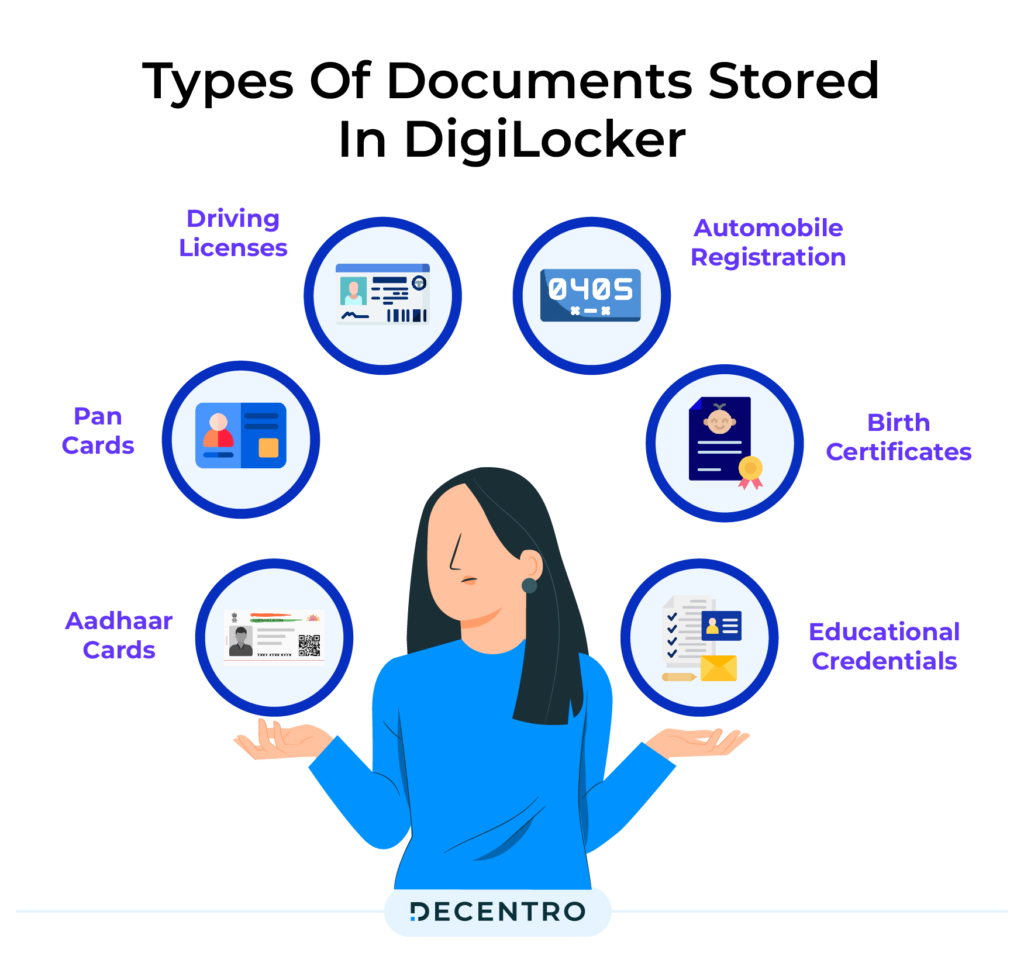
We can Link All Certificates to DigiLocker that are issued by central and state government authorities. Common certificates include:
Aadhaar
Issued by Unique Identification Authority of India, Aadhaar can be linked for identity verification.
Driving Licence
Issued by state transport departments through Parivahan.
RC (Vehicle Registration Certificate)
Digital RC can be fetched directly once vehicle details are entered.
PAN Card
Issued by the Income Tax Department and linked using PAN number and date of birth.
Birth Certificate
Available from municipal corporations and local self-government departments.
Education Certificates
SSLC, Plus Two, diploma, and degree certificates from boards and universities.
Voter ID
Issued by the Election Commission of India.
Income / Caste / Community Certificates
Issued by state revenue departments, including Revenue Department Kerala.
Requirements to Link All Certificates to DigiLocker
Before we proceed to Link All Certificates to DigiLocker, the following requirements must be met:
- Active mobile number
- Aadhaar number (recommended)
- DigiLocker account
- Correct personal details matching issuing authority records
- Internet access
Meeting these requirements ensures smooth DigiLocker certificate linking without errors.
How to Create a DigiLocker Account
To Link All Certificates to DigiLocker, we must first create an account:
📱 Download DigiLocker (Android)
- Visit the DigiLocker website or mobile app
- Click on “Sign Up”
- Enter mobile number and verify OTP
- Set username and password
- Optionally link Aadhaar for full access
Once the account is created, we can begin the process to Link All Certificates to DigiLocker.

How to Link All Certificates to DigiLocker – Step-by-Step Guide
This section explains the official method to Link All Certificates to DigiLocker.
Step 1: Login to DigiLocker
We log in using our username/mobile number and password.
Step 2: Complete Aadhaar Verification
For seamless access, we should complete Aadhaar-based verification. Aadhaar linked DigiLocker enables automatic document fetching.
Step 3: Open Issued Documents Section
Navigate to the “Issued Documents” tab on the dashboard.
Step 4: Search Issuing Authority
Select the relevant department such as Transport, Education Board, or Revenue Department.
Step 5: Enter Required Details
Provide details like certificate number, roll number, date of birth, or registration number.
Step 6: Fetch and Save Certificate
Click “Get Document.” Once fetched, the certificate is saved permanently.
We repeat these steps to Link All Certificates to DigiLocker one by one.
How to Upload Certificates Manually in DigiLocker
If a certificate is not available for direct linking, we can upload it manually:
- Open “Uploaded Documents”
- Click “Upload”
- Select file (PDF/JPEG)
- Enter document type and description
- Save securely
Manual upload supports our effort to Link All Certificates to DigiLocker comprehensively.
How to Link Educational Certificates to DigiLocker
Educational certificates are commonly required for employment and admissions. To Link All Certificates to DigiLocker related to education:
- Choose the respective board or university
- Enter roll number and year
- Fetch SSLC, Plus Two, or degree certificates
Digitally issued education certificates are considered authentic and verifiable.
How to Link Vehicle and Driving Certificates
Vehicle-related documents are widely accepted via DigiLocker:
- Select Transport Department
- Enter DL number or vehicle registration number
- Fetch digital DL and RC
This process helps us Link All Certificates to DigiLocker related to transport efficiently.
How to Check Whether Certificates Are Successfully Linked
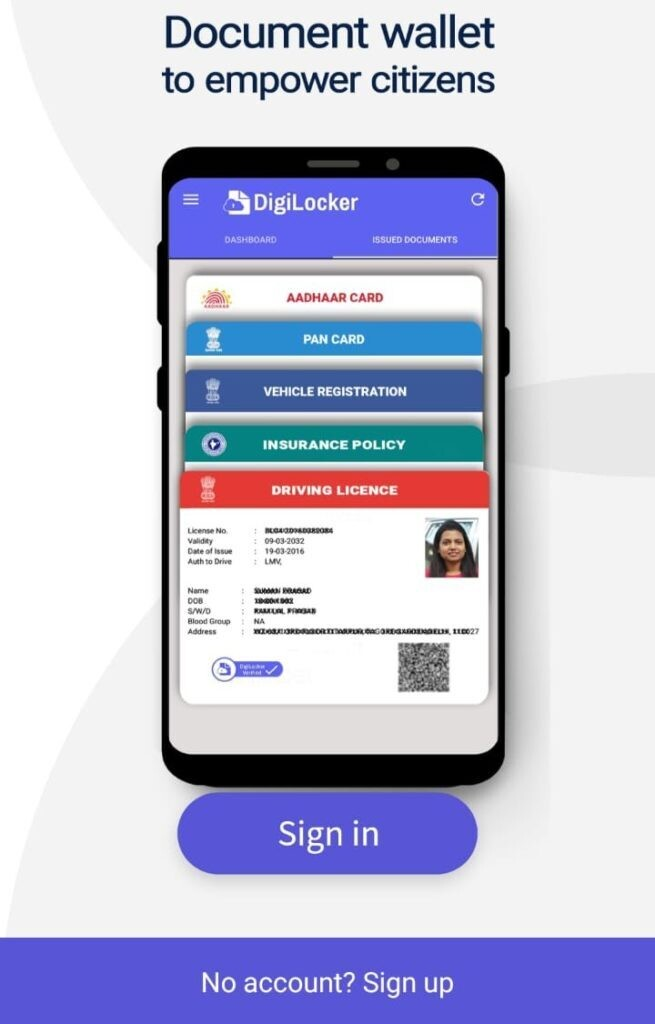
To confirm successful DigiLocker certificate linking:
- Open “Issued Documents”
- Check document status
- View and download certificate
Successfully fetched certificates indicate we have completed the process to Link All Certificates to DigiLocker.
Common Problems While Linking Certificates & Solutions
| Problem | Solution |
|---|---|
| Details mismatch | Verify spelling and DOB |
| Certificate not found | Try manual upload |
| Aadhaar not linked | Complete Aadhaar verification |
| Server error | Retry during non-peak hours |
Understanding these issues helps us confidently Link All Certificates to DigiLocker.
Benefits of Linking All Certificates to DigiLocker
When we Link All Certificates to DigiLocker, we gain:
- Centralized document access
- Reduced paperwork
- Faster government services
- Legal validity
- Secure storage
These benefits highlight why every citizen should Link All Certificates to DigiLocker.
Security & Legal Validity of DigiLocker Documents
Documents stored in DigiLocker are encrypted and protected by government security standards. Digitally issued documents are legally valid under the Information Technology Act, 2000. Hence, when we Link All Certificates to DigiLocker, we are using a secure and legally recognized system.
Frequently Asked Questions (FAQ)
Is DigiLocker mandatory?
No. However, it is strongly recommended to Link All Certificates to DigiLocker for convenience.
Are DigiLocker documents legally valid?
Yes. Digitally issued documents are legally valid.
Can certificates be deleted?
Yes. Uploaded documents can be removed, but issued documents remain linked.
Conclusion
In conclusion, choosing to Link All Certificates to DigiLocker is a practical and secure decision for Indian citizens. When we Link All Certificates to DigiLocker, we ensure easy access, legal validity, and long-term safety of government documents. With step-by-step DigiLocker certificate linking, Aadhaar linked DigiLocker access, and manual upload options, DigiLocker serves as a trusted digital document platform. We strongly recommend that every citizen Link All Certificates to DigiLocker and embrace secure digital governance for the future.
DigiLocker app links (Android & iOS)
📱 Download DigiLocker (Android)